
Welcome back
Come back to ReefMind: what’s new since August
If you tried ReefMind.ai earlier this year and drifted away, I get it. Reefkeeping already asks a lot of your evenings. Since August, most of what we’ve built has been about giving that time back and helping you spot trouble sooner. Here’s what’s waiting for you, and how to get your tank reconnected in about 2 minutes.
Log a test by saying it
Tap the microphone and say something like “alk 8.2, calcium 440.” Captain Chris reads the numbers back and shows a confirm card, and nothing saves until you tap confirm. You can talk with him in real time too, and interrupt him mid-sentence. Voice is included in Plus and Pro, and in trials.
Ask how to do anything
Ask Captain Chris “how do I…” questions, like “how do I add my controller?” or “how do I upload an ICP test?”, and he answers with the exact taps and a link that opens the right screen. If something isn’t possible yet, he tells you plainly instead of guessing.
Your camera labels the fish and coral it sees
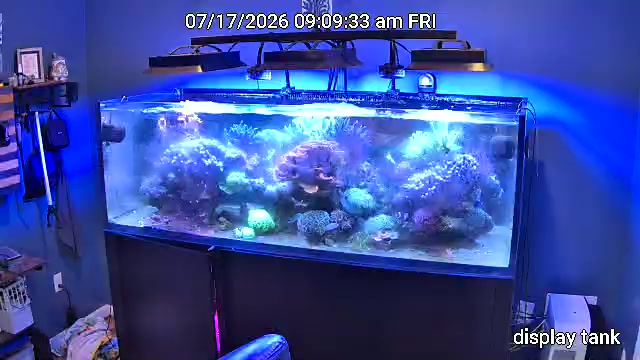
If you have a ReefMind camera, your photos now show numbered boxes around the fish and coral ReefMind thinks it sees, named from your Livestock list. It’s early and it makes mistakes, so tap any box to correct it. Your corrections only teach your own tank. After a few days of photos, the What the camera noticed panel sums up the week.
Livestock, for every account
Keep a list of the fish, corals and invertebrates in each tank. It gives Captain Chris and your camera summaries real context about what lives in your reef.
Upload your ICP spreadsheet
If your lab sends results as an Excel or CSV file, upload it on the ICP tab. ReefMind.ai reads the values straight from the file, with no retyping and no AI guessing at numbers, and you review them before saving.
Dosing Intelligence
Dosing Intelligence brings your tank’s dosers and pump heads into one view and explains, in plain English, what you dose, what each supplement should influence, what to do next and what not to change. Dosing Intelligence only reads your dosing data. It never schedules, changes or commands a dose.
A Weekly Tank Coach
Each week the Weekly Tank Coach shows one win, one thing to watch and a 2-minute lesson, all drawn from your tank’s last 7 days.
Settings and a dashboard you arrange
Settings is now a set of focused panels for your tanks, controllers, dosing equipment, notifications and the Captain Chris Tank Profile. On the dashboard, tap Rearrange to drag your widgets into the order you want, at Compact, Standard or Full width.
Reconnect your tank in about 2 minutes
- Sign in at reefmind.ai/login. Forgot your password? Use Forgot password? on the sign-in screen.
- Check your connection. Open Settings, pick your tank and look at its Controllers section. If a connection asks for your login again, re-enter it there. HYDROS owners: follow the HYDROS reconnect steps.
- Plug your Collector back in, if you use one. If readings haven’t started arriving after a few minutes, message me on Discord.
- Log one test, by voice or by typing, so Captain Chris has a fresh reading to work from.
Some features depend on your plan. The plan details are on reefmind.ai.
What hasn’t changed
Monitoring is read-only by default. Some integrations offer optional controls, and those only run when you deliberately use them. ReefMind.ai never runs your tank on its own. It watches, explains and helps you decide.
Welcome back. I’m glad you’re here.
Brett Miller
Founder, ReefMind.ai